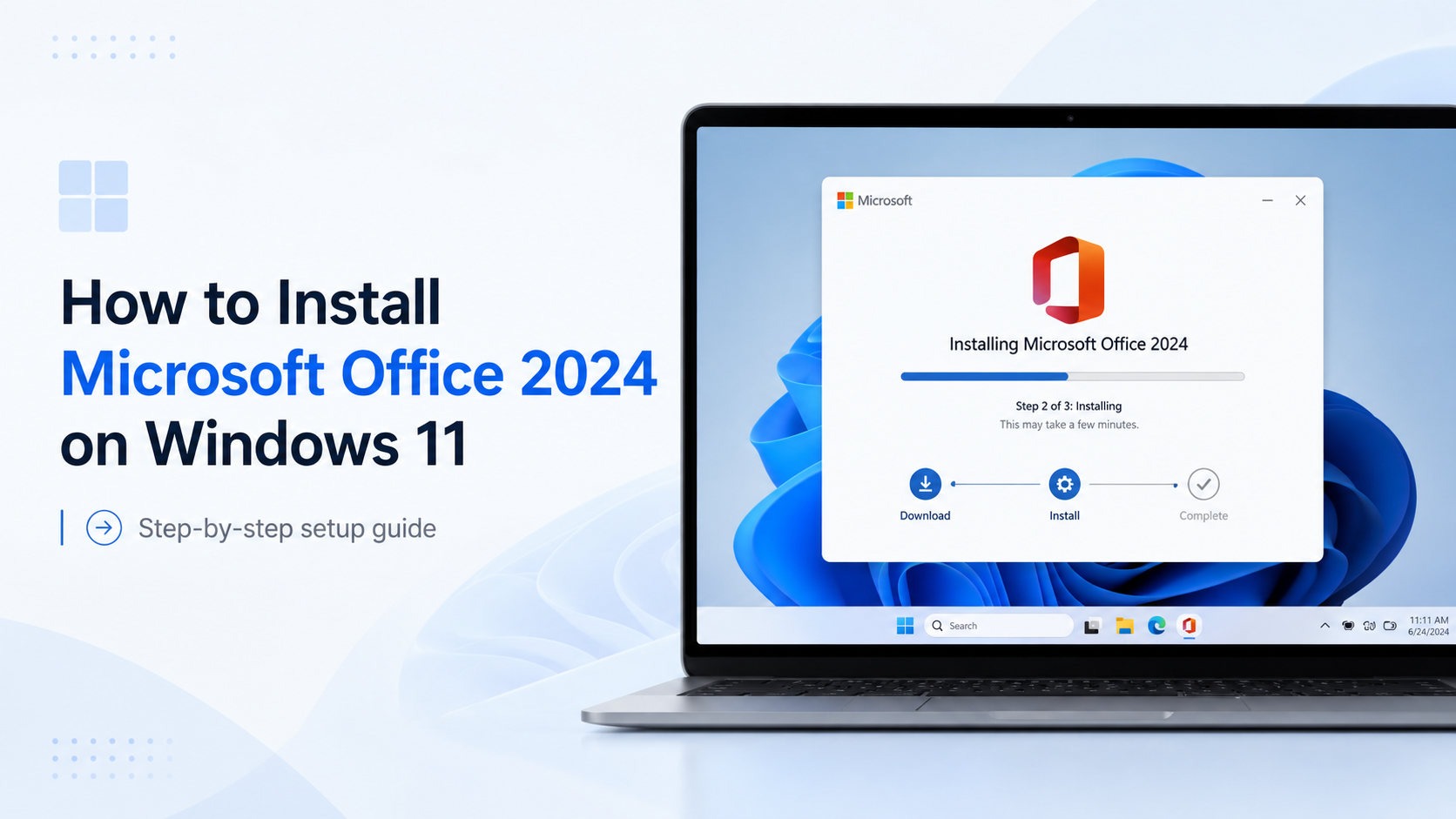
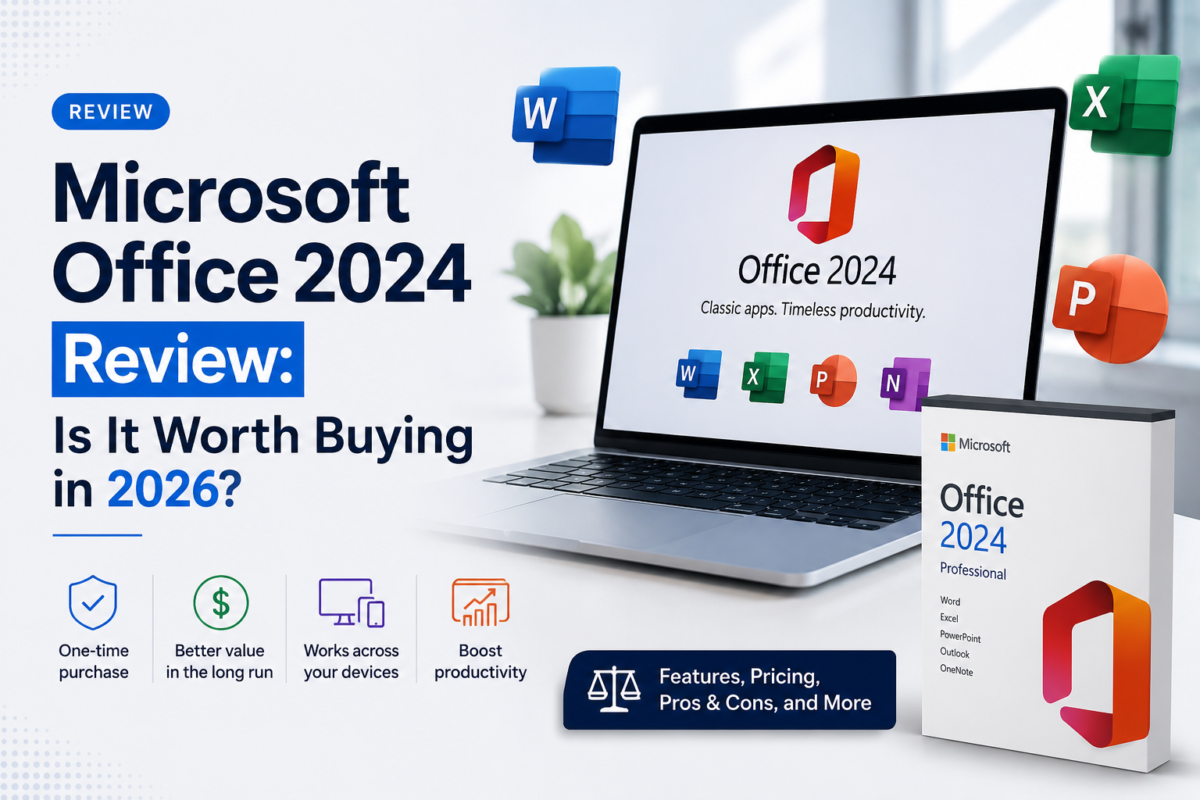
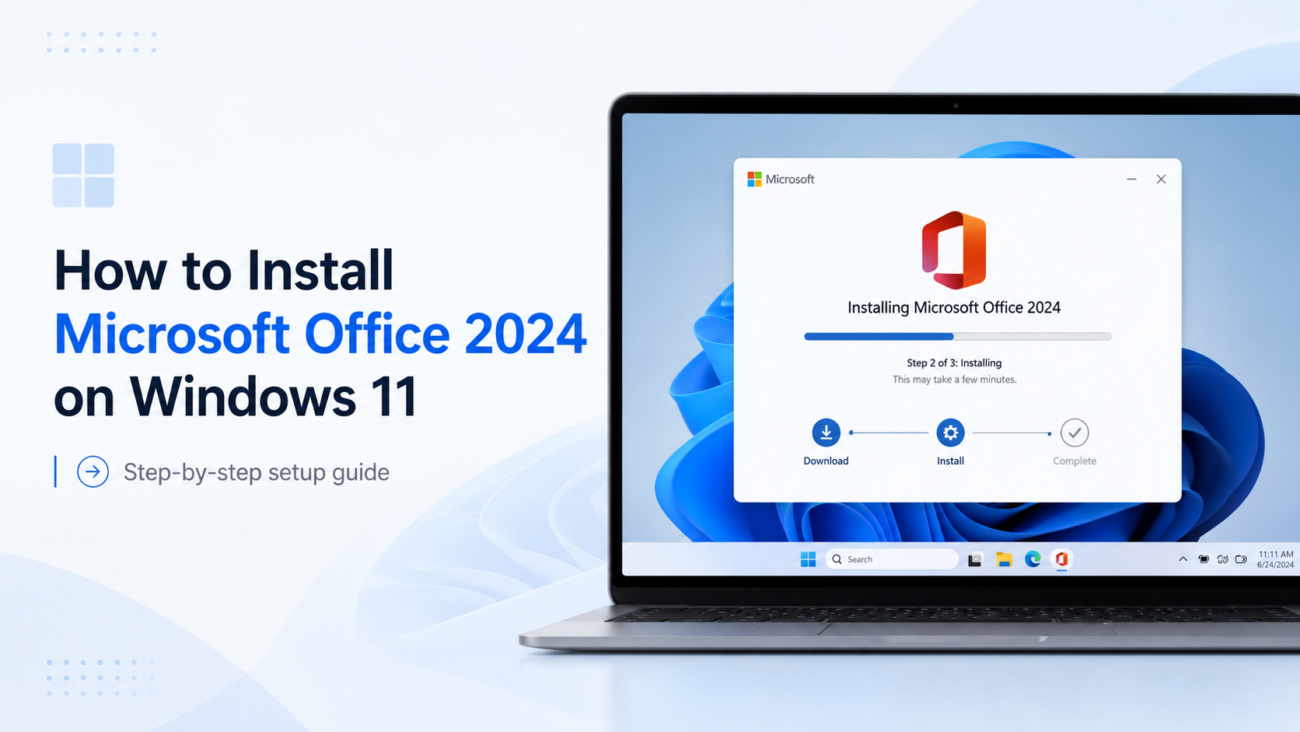
Installing Microsoft Office 2024 on Windows 11 is quick and straightforward. This step-by-step guide takes you from purchase to first launch in under 30 minutes.
Buy your genuine Office 2024 key on DigitLicense.com and receive it by email within 2–5 minutes.
What You Need
Hardware
Windows 11 64-bit PC, 4 GB RAM minimum, 4 GB free disk space
Software
Stable internet, Microsoft account (free), 25-character license key
Installation Steps
Purchase your key
Go to DigitLicense.com, choose Office 2024 edition and checkout. Key arrives by email in 2–5 minutes.
Go to office.com/setup
Sign in with your Microsoft account and enter your 25-character key: XXXXX-XXXXX-XXXXX-XXXXX-XXXXX
Download & run installer
Click Install Office to download OfficeSetup.exe. Run it as administrator.
Wait 10–20 minutes
Office downloads and installs automatically. Do not close the installer window.
Activate & launch
Open Word or Excel — Office activates automatically. You will see “Office is activated”.
Common Issues
Problem
Cause
Fix
Installer stuck at 90%
Windows Update running
Pause Windows Update, restart installer
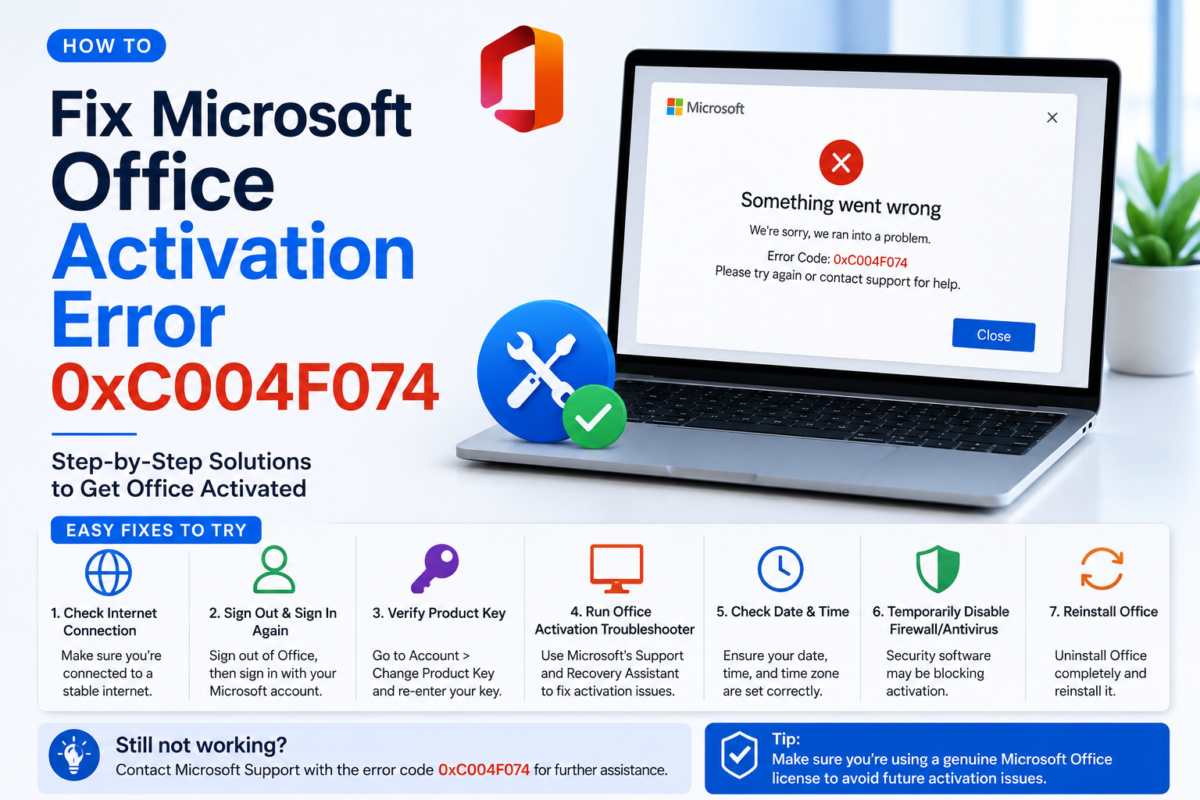
Error 0xC004F074
Server unreachable
Disable VPN, check connection, retry
Key already used
License on another account
Contact DigitLicense support
Always download Office from office.com/setup only. Third-party sites may bundle malware.
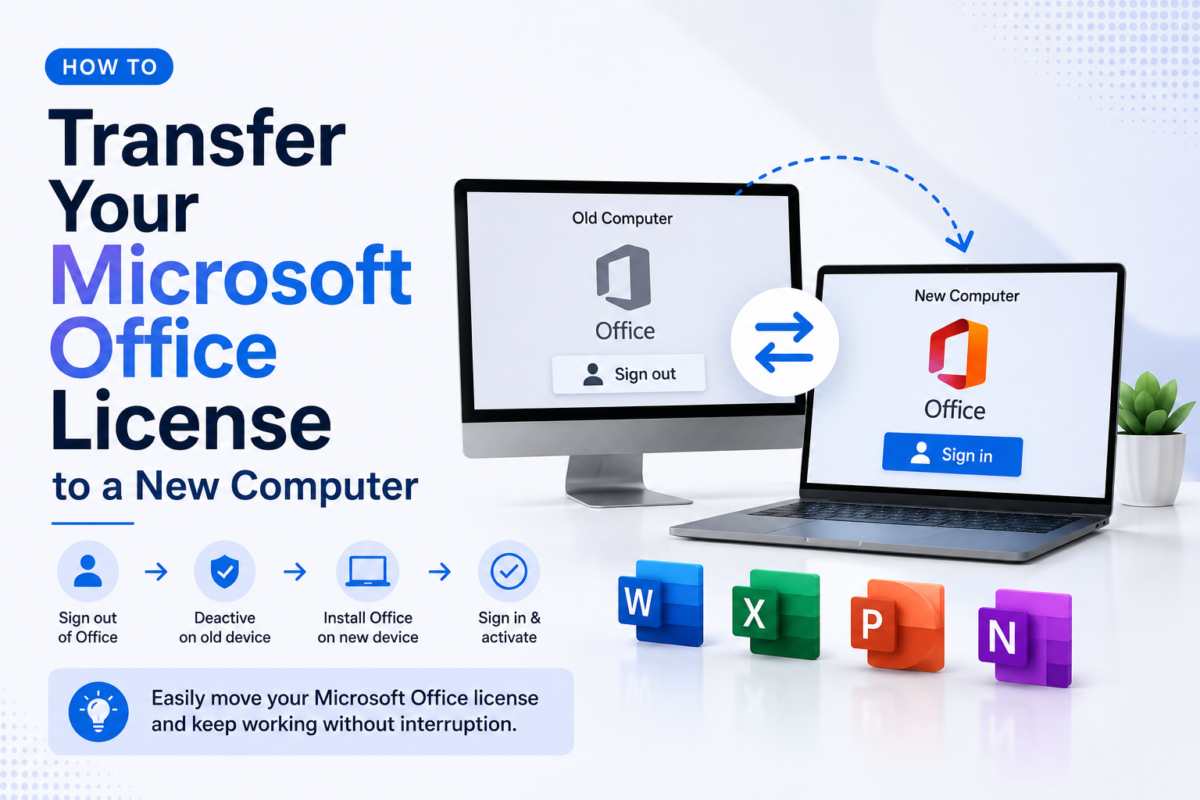
Can I install Office 2024 on multiple computers?
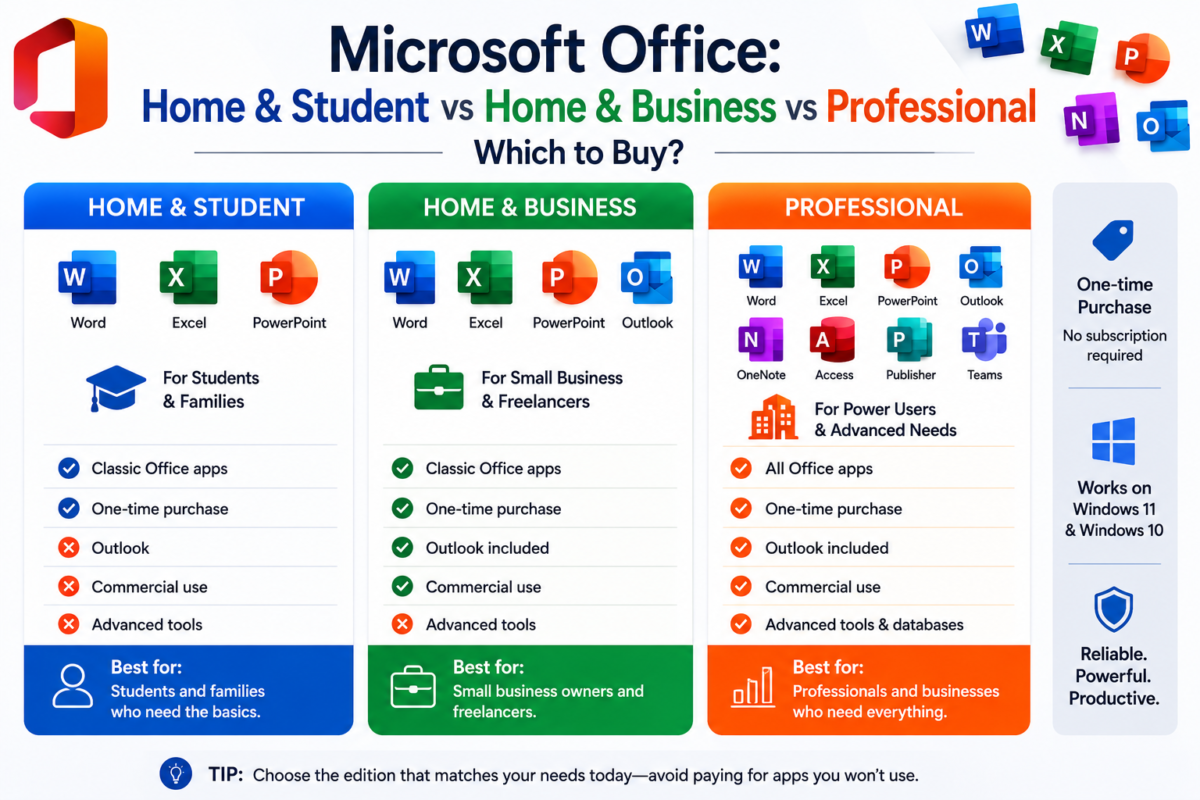
Home & Student and Professional are single-device licenses. Microsoft 365 allows up to 5 devices.
Does Office 2024 work on Windows 10?
Yes — fully compatible with both Windows 10 and Windows 11.
Get Office 2024 — Instant Delivery
Genuine key delivered to your inbox in 2–5 minutes.