How-To & TutorialsHow to Activate a Windows 11 License Key – Complete Guide Posted by oustaleb May 28, 2026 On May 23, 2026 0 Share: Activation GuideWindows 115 minActivating your Windows 11 license key takes only a few minutes. This guide covers every available method and what to do when activation fails.Purchase your genuine Windows 11 key on DigitLicense.com — delivered by email in 2–5 minutes.Method 1 — During Windows 11 SetupStart Windows 11 installationWhen prompted, select “I have a product key”.Enter your keyType your 25-character key: XXXXX-XXXXX-XXXXX-XXXXX-XXXXX then click Next.Activation completes automaticallyWindows contacts Microsoft servers and activates. No further action needed.Method 2 — After InstallationOpen SettingsPress Win + I → System → ActivationChange product keyClick “Change” next to Product Key, enter your key and click Next.Activation confirmedYou will see “Windows is activated” with a green checkmark.Method 3 — Command LineOpen Command Prompt as Administrator and run:slmgr /ipk XXXXX-XXXXX-XXXXX-XXXXX-XXXXXthen: slmgr /atoActivation Error CodesErrorMeaningFix0xC004F074Server unreachableDisable VPN, retry0xC004C003Key blockedContact support0x803F7001No valid licenseRe-enter key in Settings0xC004E003Licensing failedRun Windows Update firstDoes a Windows 10 key work on Windows 11?Yes — Windows 10 Pro and Windows 11 Pro use the same key format. Genuine keys from DigitLicense work on both.Can I transfer my key to a new PC?Yes — retail keys can be moved. Sign in at account.microsoft.com, deactivate the old device, then activate the new one.Get Your Windows 11 KeyGenuine key — instant delivery, lifetime activation.Buy Windows 11 Newer Microsoft Office: Home & Student vs Home & Business vs Professional – Which to Buy? Back to list Older Microsoft Office 2021 vs Office 2024: Which Version Should You Buy? Related posts 23 May Software Reviews Microsoft Office 2024 Review: Is It Worth Buying in 2026? Posted by oustaleb May 28, 2026 0 Continue reading 23 May License Management How to Transfer Your Microsoft Office License to a New Computer Posted by oustaleb May 28, 2026 0 Continue reading 23 May Troubleshooting & Fixes How to Fix Microsoft Office Activation Error 0xC004F074 Posted by oustaleb May 28, 2026 0 Continue reading 23 May Software News & Updates What’s New in Microsoft Office 2024: All Features and Improvements Explained Posted by oustaleb May 28, 2026 0 Continue reading 23 May Buying Guides Microsoft Office: Home & Student vs Home & Business vs Professional – Which to Buy? Posted by oustaleb May 28, 2026 0 Continue reading 23 May How-To & Tutorials How to Activate a Windows 11 License Key – Complete Guide Posted by oustaleb May 28, 2026 0 Continue reading 23 May Software Comparisons Microsoft Office 2021 vs Office 2024: Which Version Should You Buy? Posted by oustaleb May 28, 2026 0 Continue reading 23 May Installation Guides How to Install Microsoft Office 2024 on Windows 11 – Step-by-Step Guide Posted by oustaleb May 28, 2026 0 Continue readingLeave a Reply Cancel replyYour email address will not be published. Required fields are marked *Comment *Name * Email * Website Save my name, email, and website in this browser for the next time I comment.
23 May Software Reviews Microsoft Office 2024 Review: Is It Worth Buying in 2026? Posted by oustaleb May 28, 2026 0 Continue reading
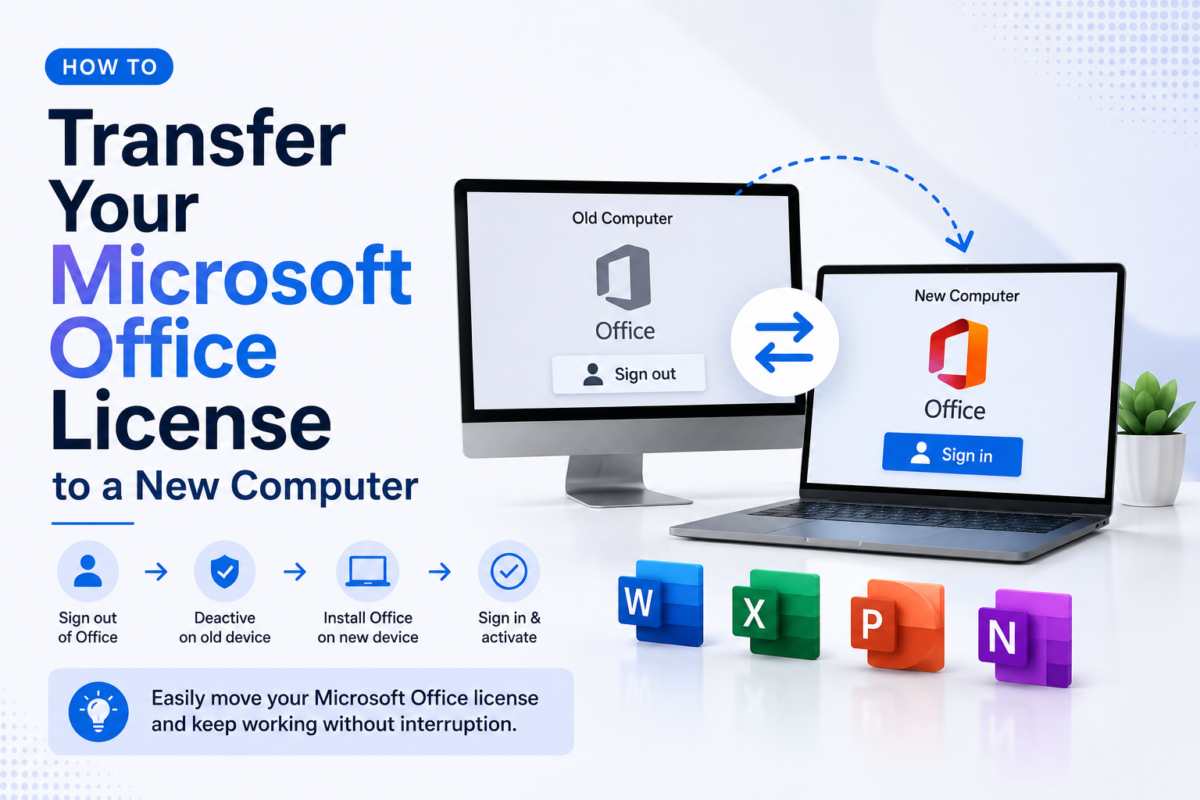
23 May License Management How to Transfer Your Microsoft Office License to a New Computer Posted by oustaleb May 28, 2026 0 Continue reading
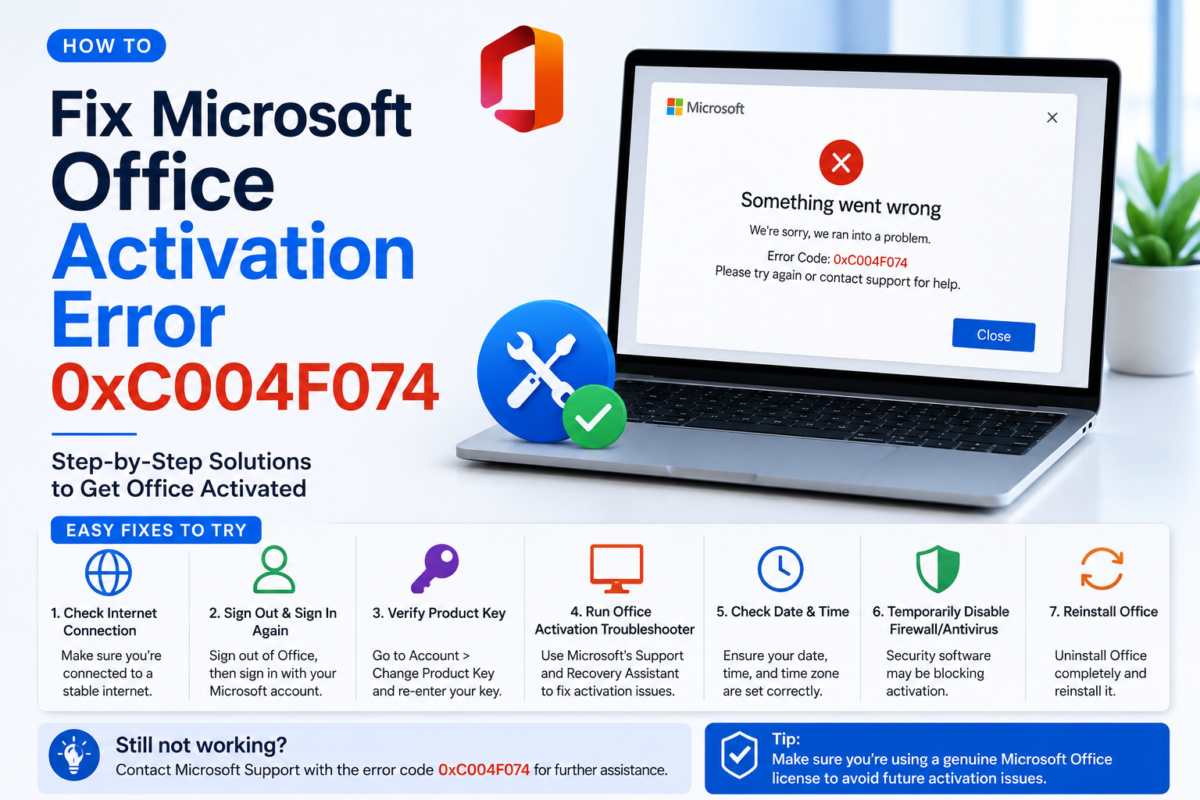
23 May Troubleshooting & Fixes How to Fix Microsoft Office Activation Error 0xC004F074 Posted by oustaleb May 28, 2026 0 Continue reading
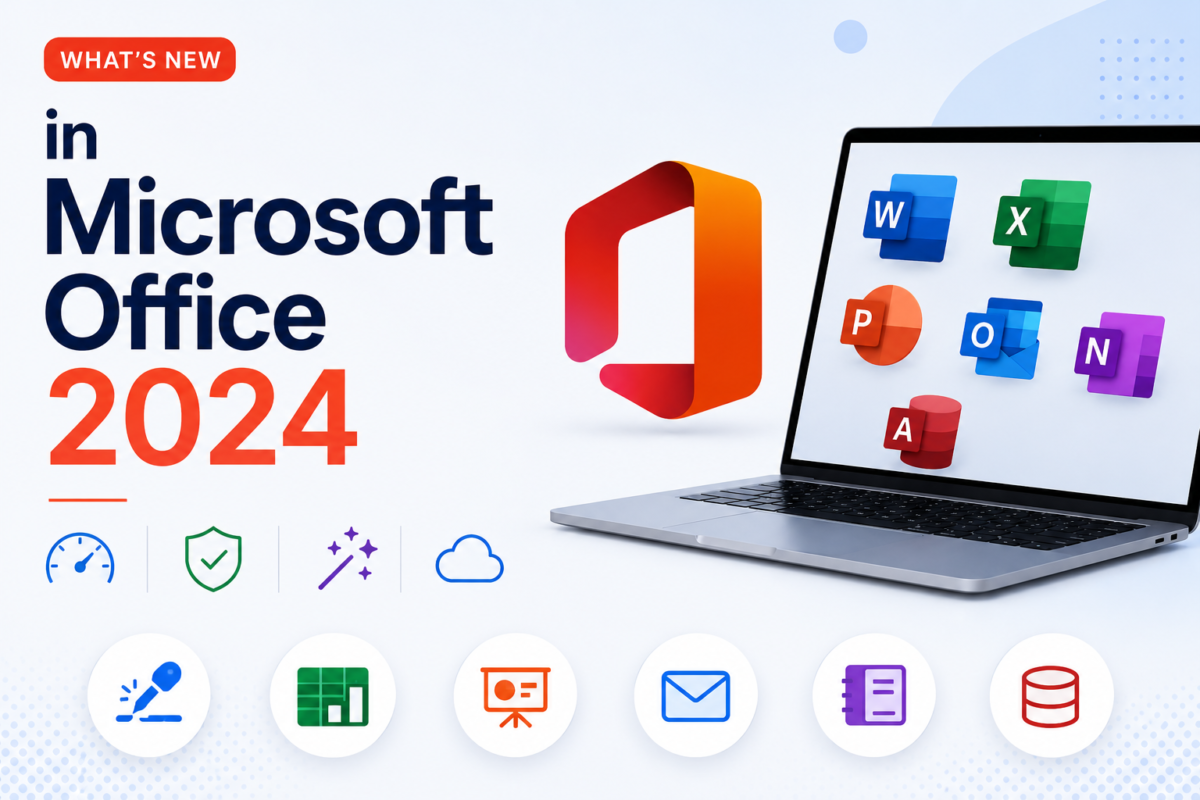
23 May Software News & Updates What’s New in Microsoft Office 2024: All Features and Improvements Explained Posted by oustaleb May 28, 2026 0 Continue reading
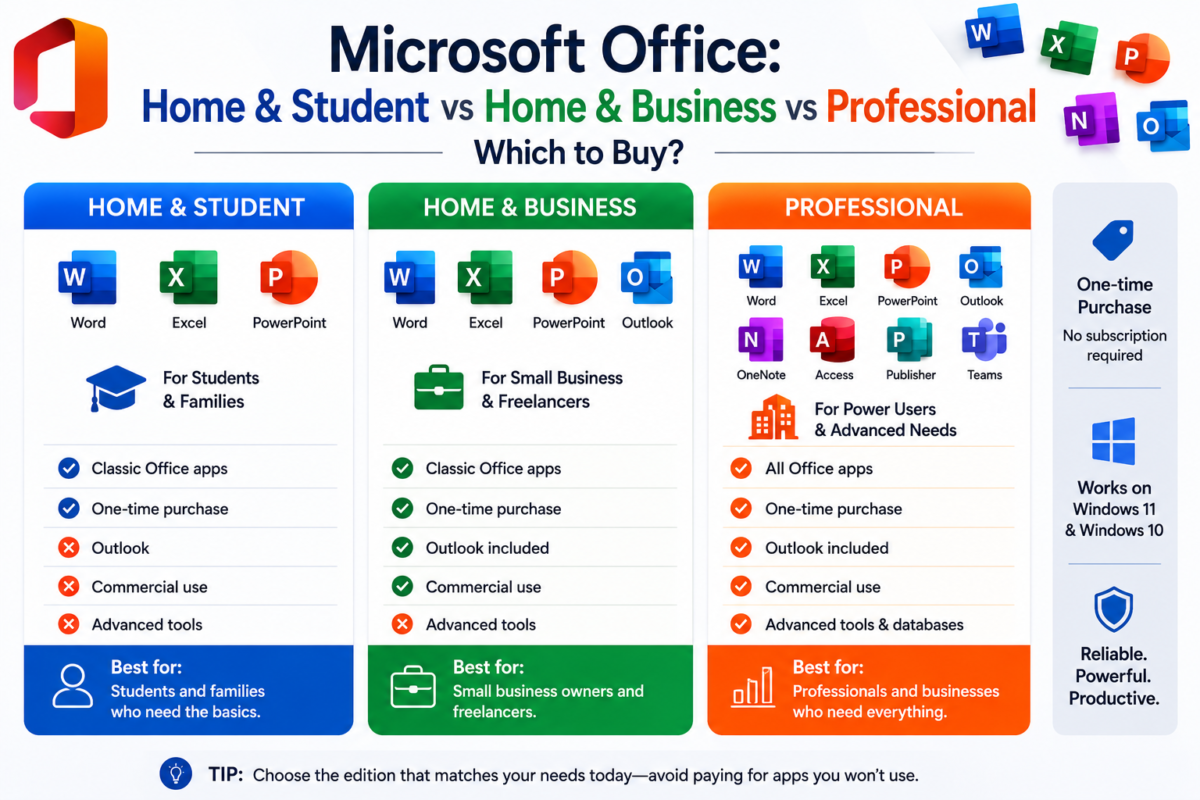
23 May Buying Guides Microsoft Office: Home & Student vs Home & Business vs Professional – Which to Buy? Posted by oustaleb May 28, 2026 0 Continue reading
23 May How-To & Tutorials How to Activate a Windows 11 License Key – Complete Guide Posted by oustaleb May 28, 2026 0 Continue reading
23 May Software Comparisons Microsoft Office 2021 vs Office 2024: Which Version Should You Buy? Posted by oustaleb May 28, 2026 0 Continue reading
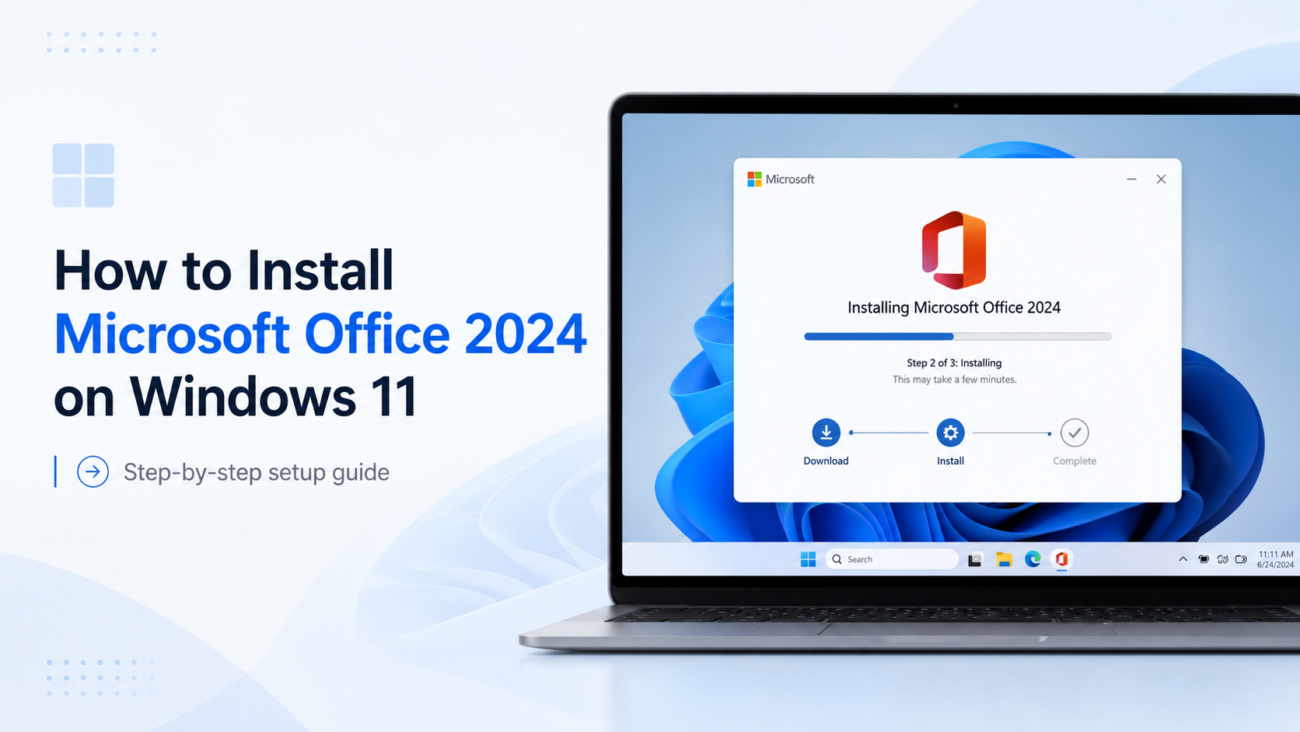
23 May Installation Guides How to Install Microsoft Office 2024 on Windows 11 – Step-by-Step Guide Posted by oustaleb May 28, 2026 0 Continue reading