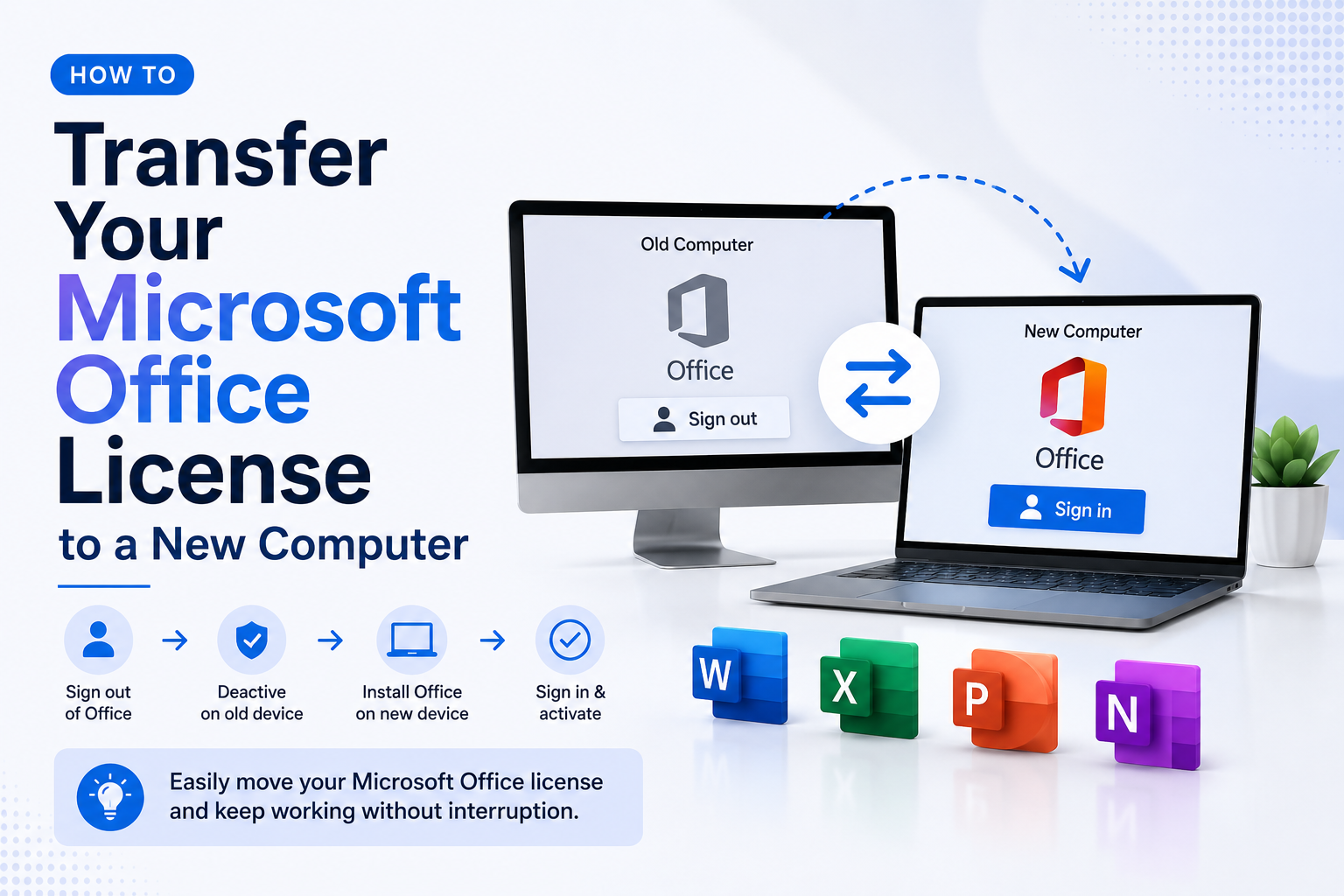
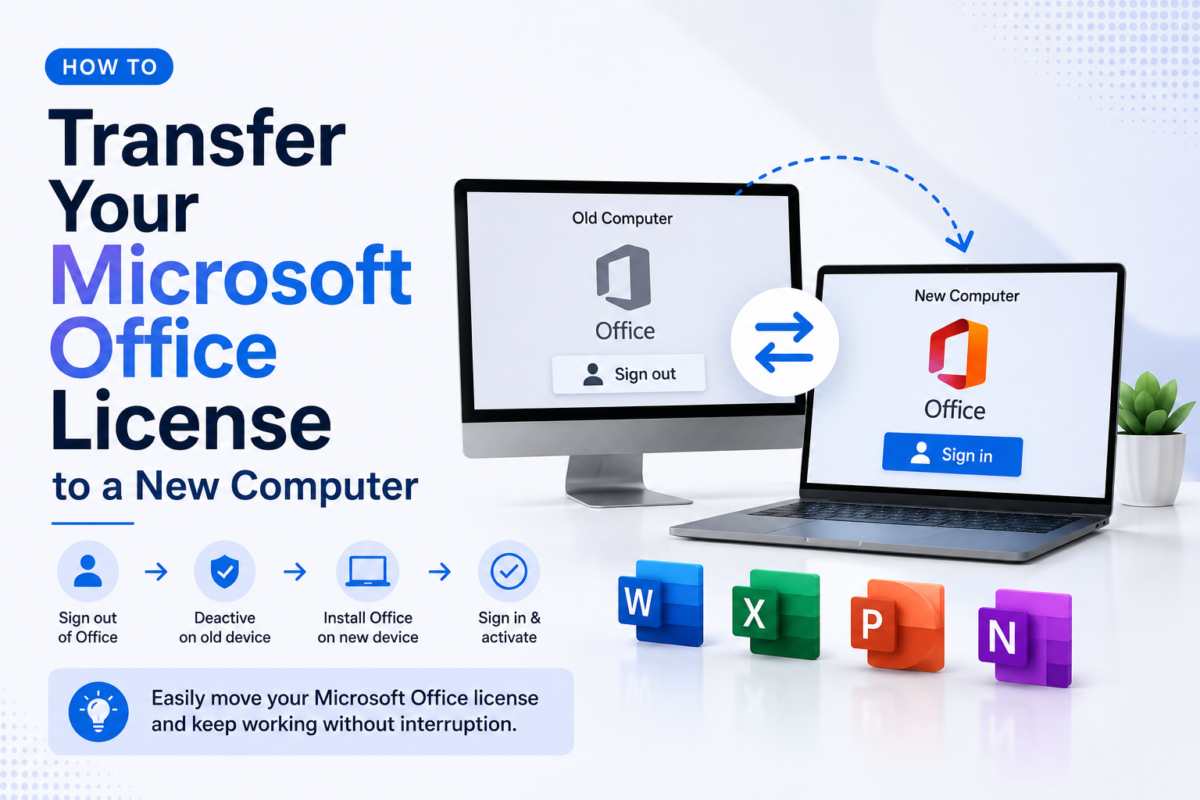
Got a new computer? You can transfer your Microsoft Office license from your old PC to the new one — completely free. Here is exactly how to do it in 2026.
Only retail licenses (like those from DigitLicense.com) can be transferred. OEM licenses (pre-installed by manufacturers) are tied to the original hardware.
License Types — Can You Transfer?
License Type
Transferable?
Source
Retail (digital key)
Yes
DigitLicense, Microsoft Store
Microsoft 365 subscription
Yes
Sign in on new PC
OEM (pre-installed)
No
PC manufacturers
Volume/KMS license
No
Enterprise IT departments
Transfer Steps
Deactivate on old PC
Go to account.microsoft.com/services, sign in, find your Office and click Install actions → Deactivate for the old device.
Uninstall from old PC
Go to Settings → Apps, find Microsoft Office and uninstall it. This frees the license slot.
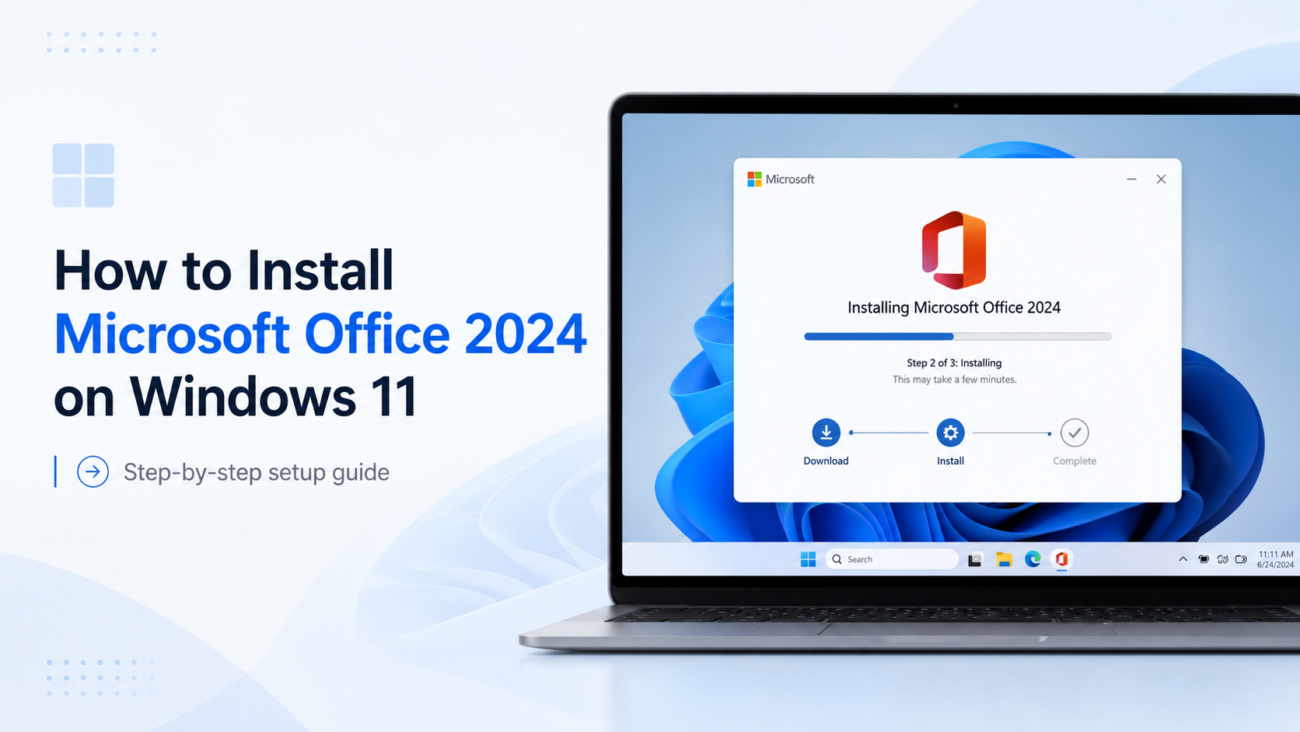
Install on new PC
On the new PC, go to office.com/setup, sign in with the same Microsoft account and click Install Office.
Activate automatically
Office detects your account and activates instantly. No need to re-enter your product key.
If Office does not activate automatically, go to Settings → System → Activation → Troubleshoot and sign in with your Microsoft account to restore the license.
Transfer Without a Microsoft Account
If you activated with a key only (no Microsoft account), you need your original 25-character key. Open Command Prompt as Administrator:
slmgr /upk — removes key from old PC Then activate the new PC with the same key at office.com/setup.
How many times can I transfer my license?
Microsoft retail licenses can be transferred, but not simultaneously. Deactivate the old installation first. There is no official transfer limit.
I lost my product key — can I still transfer?
Yes, if the key is linked to your Microsoft account. Sign in on the new PC at office.com/setup and reinstall from your account.